
I have recently upgraded to Photoshop CS2. My primary reason was interest in doing a High Dynamic Range (HDR) image. So far, I have not actually tried such an image. I was recently reading this month’s Outdoor Photographer magazine. George Lepp shows an example of an HDR image from Hawaii. It is sunset at the beach with black lava rocks. He took 7 images each one-stop apart on exposure. The result is amazing.
Here is how to do an HDR image…
To make a high dynamic range (HDR) image.
- You must be on a tripod because all different exposures must be perfectly registered.
- Second, you must make different exposures because it will not work if you try to combine two different images made from processing the same raw image differently.
- Make sure that you make several images that capture all your shadow and highlight detail. It is better to over-bracket rather than under-bracket.
- Try to avoid motion. For this image, there were 4 exposures ranging from 3.2 seconds to 15 seconds. In some of the images, there was a breeze blowing around the leaves. I think that gives the glowing effect and the purpling color in some of the highlighted leaves.
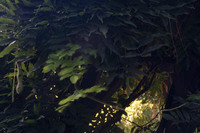

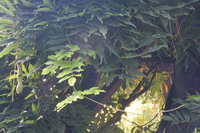

From raw, I processed all 4 images with the automatic settings turned off and saved as 16-bit TIFFs. I wanted 16-bit color because an HDR becomes 32-bit color. Within Photoshop CS2, I selected the File | Automate | Merge to HDR menu item. In the resulting dialog, I selected my 4 TIFFs. I do not think that order matters. Click OK and watched the script run.
After merging, you are presented with another dialog, named Merged to HDR. In this dialog, you can toggle on whether or not you want a particular base image merged into the result. I just moved the White Point Preview until I got something that I liked and kept the bit depth at 32. After clicking OK, you have a 32 bit image available for editing in Photoshop.
Since most of my plugins (like Nik) do not understand 32 bit images, I converted to a 16 bit image using the Image | Mode | 16 bit command. Again, you are presented with a conversion dialog. The default choice is Exposure and Gamma but that is too arcane for me. So I selected the highlight compression option and clicked OK. From there, I had an image fairly close to the one shown. I did a little bit of contrast adjustment, etc.
Very cool! I will definitely continue experimenting with this technique. My hope is to get a color image of dappled forest sunlight.
 DorothyPhoto