Yosemite #6

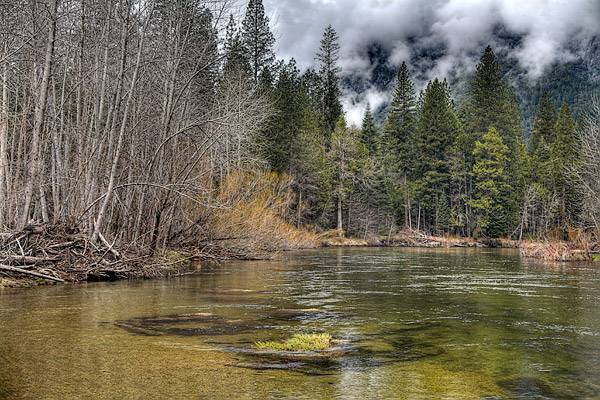
Merced River

This is another from my Yosemite series. I loved the beautiful green color in the Merced River but had a hard time capturing its essence. In the process, I learned a trick that I want to pass on. Below is the same image as I would have normally processed As you can see, there is a huge difference in the tonal quality between these two images.
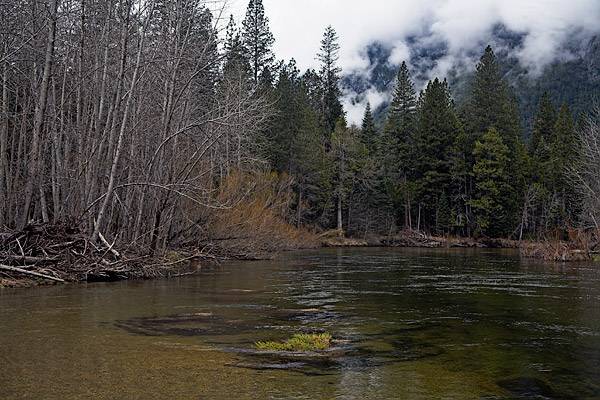
Merced River (original)

The original image was captured in Raw format. There was no black or white clipping in the histogram but the histogram shows a very contrasty image with a large spike in the quarter and three-quarter tones. I processed this image (5) times with exposure values of 0, -1, -2, +1 and +2. This simulates doing exposure bracketing in the field. Then using Photomatix Pro, I combined the (5) images into a single High-Dynamic Range image and did tone mapping (I think I used the default values).

Maybe, you are saying to yourself that I could just use Shadows & Highlights to open up the darker areas in the original version and retain some detail in the clouds. Well, I did use Shadows & Highlights and I still could not get results nearly as good as using the high-dynamic range image. The bad news is that you would have to buy Photomatix Pro because this trick does not work with Photoshop CS2’s HDR plugin. Photoshop’s HDR requires different exposures not just different raw processing. The good news is that you can try out Photomatix Pro for 30 days and see if it works for your style of photography.
Swanson Creek #3

20060204_uvas_canyon_mg_0155
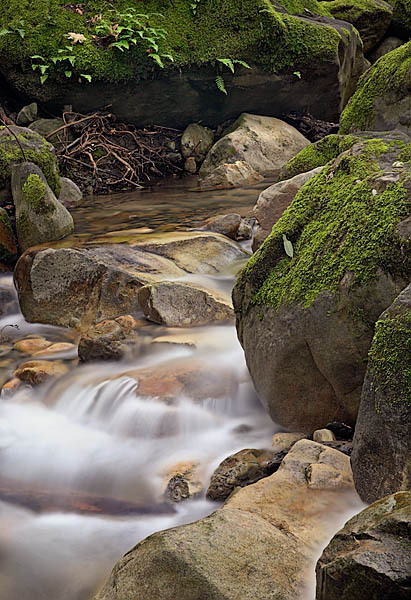
Another shot from Swanson creek from this weekend. In the bottom right, the water is mimicking a sharpening defect. It is actually in the original.

For this shot, I had to light-paint after the fact to open up the heavy shadows in to the top of the image. This is really handy when you are not using flash in the field. In Photoshop, make a duplicate of your flattened image. The image must be in 8-bit color for this filter to work. Select Filter | Render | Lighting Effects. At the top, choose Flashlight from the Style dropdown list. Now, position the center of the flashlight beam where you want. You can size the flashlight beam by grabbing the edges in the preview window and dragging. There are a lot of sliders that you can ignore. You may want to play a little with ambience. This controls how fast the light drops off to black. Click OK.

Now, you have a bright spot in your image fading to black. Add a layer mask to the duplicate layer and fill with black. Take a soft brush with Opacity 50% / Flow %30 and slowly start revealing where you added light. By building the light slowly, you should avoid an obvious edge. If you want a stronger effect keep increasing the Opacity of your brush.

Amazing Circle

20050705_alameda_fair_88c
I ran across a fun technique for fiddling an image, called Amazing Circles. This image was made with an variation of this technique that made it into an ellipse. The source image for this effect was the ‘Sea Monster of Alameda Fair’.

For both Amazing actions, start with a square selection covering as much of your image as possible. To make a square selection, choose the rectangular selection tool. On the toolbar, change the style to ‘Fixed Aspect Ratio’. Leave the width and height to 1 (meaning square). Make your selection, and run the action.

Alameda Creek

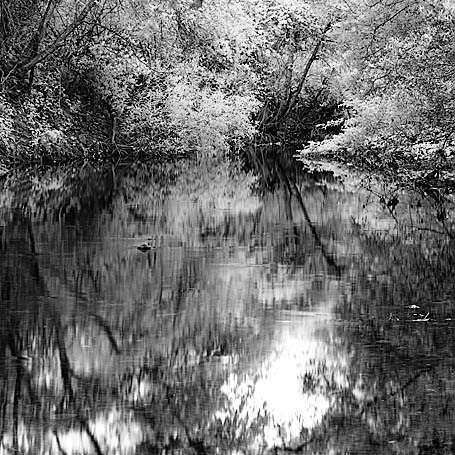
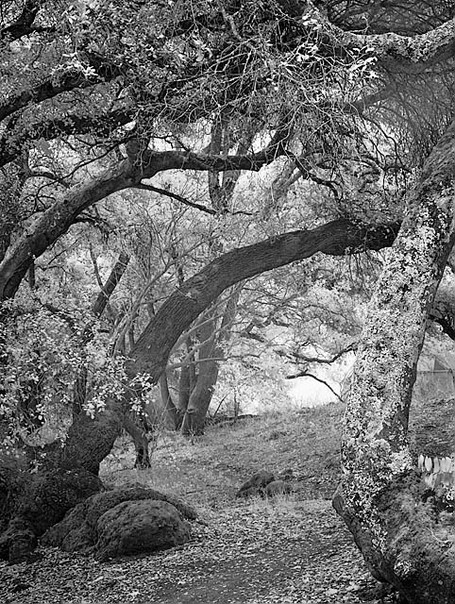
20050618_sunolcrw_3717p
This is another find from the archives. For one thing, I think that cropping can make a huge difference. Also, I think that Pixmantec’s Rawshooter has hugely improved my infrared work. Using Rawshooter, I can get much closer to what I want for the final result. Here are my Rawshooter steps for infrared images…

  • First, I need to set the white point because infrared images come out of the camera with a strong magenta cast. I can get my raw files close to neutral. Somewhere between 1800-200K. Photoshop’s camera raw lowest color temperature is 2000K.
  • Next, I use auto exposure which gives a good starting point.
  • Most infrared images need more contrast so I use the built-in Strong Contrast curve.
  • I can fine-tune the shadow and highlight contrast independently. Usually, I add more shadow contrast and less highlight contrast.
  • While converting to a 16-bit TIFF, I do raw sharpening. My images enter Photoshop with a nice crisp look without any over-sharpening.

Posting an Image

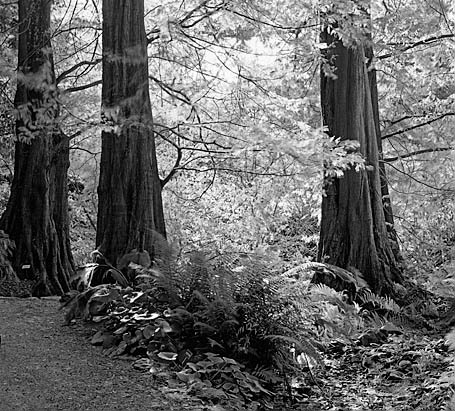
20051113_berkeley_botanical_mg_5807p
My blog is a photoblog. So, I post a lot of images. It maybe surprising but I do not use photo albums. Instead, I post one or two images per blog entry.
To get the best results. Here are a few tips for prepping your image before display. I use Photoshop but any imaging program will work.

Continue reading

Oakland Convention Center

20051114_oakland_img_0595
This was a grab shot taken outside my office. The glass building is the Oakland Convention Center. The spire with the clock is the Oakland Tribune building.

Today, I attended a Photoshop seminar. I thought that I was taking Photoshop Creativity by Bert Monroy. Instead, I signed up for Photoshop CS2 Power Tips by David Cross. The seminar was excellent and I learned a lot. Here is one of the tips from the seminar.

Tip: For this image, I used the Image | Apply Image command. I chose Blending Mode of Multiply. This caused the colors and details to pop. Then, I changed the opacity to reduce the strength. The seminar recommends Overlay mode. Try both and see what works for you.

Sunol

20051106_sunolcrw_533503
This was taken just below the visitor center in Sunol. Tried maybe 4 different crops before choosing this one. If you look close, there is a tent in the right-hand side. I burned it down to make it less prominent.

Tip: I have been using Pixmantec Rawshooter for a couple of weeks now. I find that I can get much closter to my final output while still in raw. I thing that I love is the composition grid. It shows the rules of thirds even while cropping. I simulate that with setting the dividers to 33.333% in Photoshop but cannot see them for reference while cropping.

White Rose

20051029_napa_mg_5719
Another from Napa in the Copia vineyards.

Tip: One a different note, checkout Colors in Life for photo inspiration and web site design inspiration. I was contacted by the author/web designer, Masroor Iman. He asked permissions to use some of my images in his web site. After seeing how wonderfully he presented my images, I need to give my blog an overhaul.