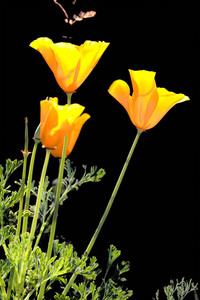
 The other nite, I was supposed to present selection techniques from Katrin Eismann’s excellent book, Photoshop Masking and Compositing at the camera club. This technique demonstrates selecting using Color Range instead of the magic wand.
I developed this example to demonstrate the technique. In my rush to get there, I left the CD-ROM on my desk. Instead, I will post the technique in my blog.
<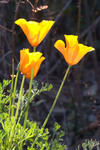 Some of you may notice, that this is a color shot of my infrared poppies. Both of these shots were taken at the same time. I liked the simplified background of the infrared shot with the dramatic line of the poppies. I wanted to see if I could get the same effect with my color shot.
To isolate the poppies from the background, I am going to use two color range selections. One selection is for the flowers, and the other selection is for the foliage. I am not going to do tedious (in my opinion) magnetic lasso or fussy brushwork on a quick mask.
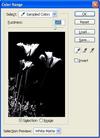 To start the first selection, I want to prime the selection with a starting color. Take the eyedropper and select some orange as the foreground color. From the menu, choose Select | Color Range. Just based on the initial starting color, my selection is already promising.
Now, lets discuss each of the controls of the Color Range. Note: you can click the Color Range image to see it full-sized.
- Fuzziness slider is your friend. Fuzziness is different than tolerance of the magic wand. The magic wand’s tolerance determines whether or not the entire pixel is selected. The fuzziness determines the percent a pixel is selected. Therefore, the fuzziness makes transparent selections. Take my word for it, a transparent selection can look far more realistic when compositng. For my image, I slid the fuzziness until I selected most of the flowers but not the distracting background.
- Selection/Image buttons toggle between having the thumbnail show you your image or your selection. Whatever is white is fully selected. Whatever is black is not selected, and grays are somewhere in between. For me, it easier to press the Control button to see the image briefly.
- The selection preview choices are very useful. They control how the selection appears in your full-size image. Now, I can really see what I am selecting not just a small thumbnail. For my example, I changed the choice to ‘Black Matte’ which makes the main image look a lot like my final image.
- On the right of the thumbnails, you have three eyedroppers that you can use to add and remove from your selection. For me, I needed to fill in more of the flowers so I needed the plus icon. As a shortcut, I do not need to click the + eyedropper but could just hold down the shift key while sampling. Whenever the shift key is pressed, the eyedropper cursor has a small + sign next to it. I like to sample on my main image rather than the tiny thumbnail in the Color Range dialog.
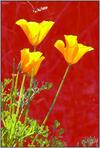 Personally, I was fuzzy about the relationship between channels, selections and the quick mask. So, let me do a quick review and give some of the pointers that I learned from Katrin Eismann’s book. FYI, this information is covered in Chapters 2 of her. It is hard to imagine how much more I can learn from this book.
- A quick mask is just another way to visualize a selection. You can look at the running ants around the selection or toggle to quick mask view. To view a quick mask, I just use the keyboard shortcut of ‘q’. This toggles to the quick mask view and hitting ‘q’ again toggles back to the running ant view. Very handy!
- A channel is another representation of a selection. While you have a selection, go ahead and look at the channels tab (this is the tab next to Layers). Notice, you have Red, Green, and Blue assuming you are working in RGB mode. A channel is a grayscale image, and a selection is a grayscale image. For selections, black means not selected and white means fully selected and gray is somewhere in between. To save my selection, just click on the new channel button (gray box with white circle) at the bottom of the Channel view. Voila, you wil immediately see a new channel named something like ‘Apha 1’ which is your selection in grayscale. Take a second to rename the channel to something useful. Just double-click on the channels name. For me, I saved my flower selection to a channel named ‘flowers’.
- Once you have saved a selection, you can safely deselect and easily restore it. One way to restore a selection is to click to Channels view, select the channel and click on the select button (small dotted circle) at the bottom the Channels view. Or, just press Control+Alt+4 (or whatever number is assigned to your channel). The keyboard trick only works for the first nine channels.
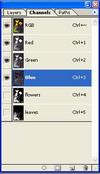 At this point, I have a channel saved named ‘flowers’ with a pretty good selection of my foreground poppies. However when I zoom in, my selection of my foliage is a little ragged. Therefore, I am going to do a second Color Range selection starting with a green color. I took the eyedropper and selected in the mass leaves for a starting point. I then twiddled the fuzziness, held the shift key to extend the range and ended with a new selection. I saved a second channel and named it ‘leaves’. This takes much longer to read than to do.
 Since I wanted a solid black background, I created a new layer and filled it with black. I moved my poppy shot above the black layer.
Finally, I am ready to drop out the distracting background. In the Layers view, I select my poppies layer. Now, I need a combined selection of flowers and leaves. At this point, I was a little stumped on how to easily combine 2 or more channels into a single selection. Have no fear, Photoshop has a way to do it– just not obvious. Switch to the Channels view and drop the leaves channel to the Select Channel button. That selects my leaves. Now, hold the Shift key and drag the flowers channel to the Select Channel button. Now, I have a combined selection of both the flowers and leaves. I invert the selection using Control+Shift+I. All the distracting background is deleted and pressing the deleting magically gets rid of it. That gives me my final image.
 DorothyPhoto