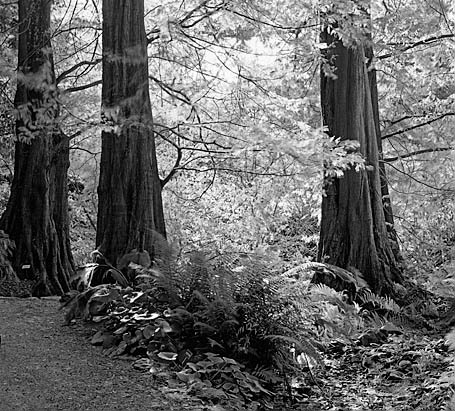
My blog is a photoblog. So, I post a lot of images. It maybe surprising but I do not use photo albums. Instead, I post one or two images per blog entry.
To get the best results. Here are a few tips for prepping your image before display. I use Photoshop but any imaging program will work.
Here are my steps…
- All web images should use the sRGB color profile. In Photoshop, select Edit| Convert to Profile command. Choose Profile: sRGB IEC61966-2.1. Click OK button.
- Since the image is going to become a JPEG format, you may need to convert the image to 8-bit color. Choose the Image | Mode | 8-bit per Channel command.
- You may need to resize your image smaller. Typepad will not allow the image to be larger than 640 pixels in either dimension. For my blog styling and layout, I decided my maximum sizes would be 455 pixels wide by 600 pixels tall. Use the File | Automate | Fit Image with your choices for constraints. Click the OK button.
- I have decided to embed an image copyright into the metada. Use the File | File Info command.
I automated the blog image conversion into an action. To modify the action to your preferences, open Photoshop.
- To see the Actions palette, make sure that Windows | Actions is checked.
- In the Actions palette, select the flyout menu (the little right arrow near the top of the palette). Choose Load Actions and load my actions.
- Your actions palette should now have a set named ‘Blog’ with an action named ‘Convert for Blog’.
- Open an image so that we can re-record the convert action to your preferences.
- Drop open the ‘Convert for Blog’ action.
- Select the Fit Image line and choose Record Again from the Actions’ flyout menu. This pops up the Fit Image dialog and you can choose new settings. Click OK when you are done. This updates the action to your liking.
- Select the Set File Info of current document line. Choose the Record Again and update the copyright to your information.
After processing your image using the blog action. The last step is sharpening your image for display. Personally, I never mastered the Unsharp Mask. Instead, I use the Nik Sharpener Pro 2.0 plugin. If you have Photoshop CS2, consider trying out Smart Sharpen. Save a copy of the image as a JPEG. To minimize download times use a quality setting of 7 because it is give good visual results without making the file too large.
When authoring your typepad entry, you can insert a picture at any point. You can use the Insert Image (small house) button. In the Insert Image popup window, browse to ‘blog-ready’ image file. Choose the Use Custom Settings choice to review all your options. I do not wrap text but that is preference. For the Thumbnail width, I choose 455 which is the width of my image. By setting the image size to match the thumbnail size means the image is not interpolated and remains as sharp as possible. I do not offer a full-size popup. Once you have the settings how you want, go ahead and choose the Save Settings as Weblogs Defaults. When done, click the Insert Image button.
 DorothyPhoto
Hi Dorothy!
Just browsing through the web and found your blog, didn’t even know that web images should use sRGB profile until now! Thanks a lot for the tips and the Photoshop Action. Beautiful photos, keep up!
Cheers,
Carlo
LikeLike
It’s nice
LikeLike
http://www.dorothyphoto.com – Great site !
Good day
Thank for your work for us!
I think it wasnt easy to post here so much information.
Best Regards
Dolly
LikeLike
astounding proficiency virtually habitat
LikeLike